
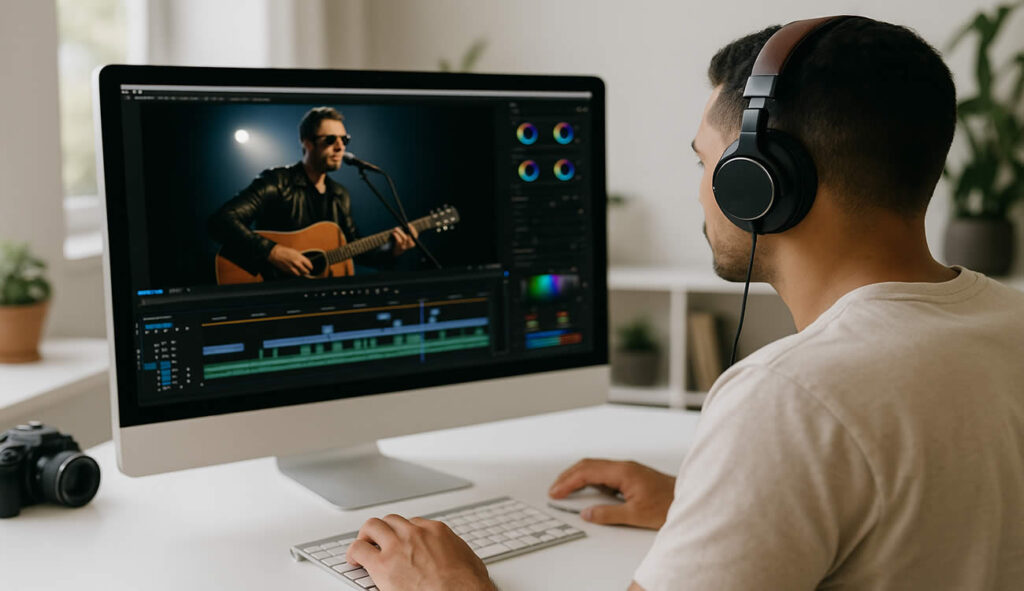
Why Edit a Music Video Yourself?
There are several compelling reasons to take editing into your own hands. For starters, it’s a great way to save money. Hiring a professional editor or buying premium software can get expensive fast. More importantly, editing your own video gives you full creative control. You decide how the visuals align with the beat, how the story unfolds, and what emotion you want to evoke.
It also helps you develop new skills. Learning how to work with audio, visuals, and timing sharpens your storytelling abilities and helps you grow as a creator. In short: doing it yourself empowers you both artistically and practically.
What Makes a Good Music Video?
A good music-focused video doesn’t just play a track in the background. It connects the visuals with the music in a way that feels intentional and natural. Whether you’re editing a performance, a mood piece, or a short promo, a few key elements can make your project feel more polished:
Visual storytelling: Even simple clips can suggest a mood or message through framing and pacing.
Beat synchronization: Edits and movements should follow the tempo and rhythm of the music.
Visual rhythm: When the flow of the video matches the beat, it feels more immersive.
Consistent tone: Colors, effects, and pacing should match the mood of the audio.
Understanding these basics will help your edits feel tighter and more professional, no matter what kind of project you’re working on.
Tools You Can Use to Edit Music Videos for Free
There’s no shortage of free software options. Your choice depends on your experience, device, and how deep you want to go into editing. Here are three top picks:
Adobe Express (Web-Based)
Adobe Express Free online video maker is excellent for beginners and those working on promotional or social content. You can upload videos, add background music, trim clips, and overlay text with minimal effort. It runs in the browser and doesn’t require installation.
While its features are somewhat limited compared to professional tools, it’s perfect for quick edits and basic projects.
CapCut (Desktop & Mobile)
CapCut offers more control than Adobe Express, especially for mobile users. It includes audio beat syncing, transition templates, filters, and effects—great for short-form content like Reels or TikToks. It’s user-friendly, flexible, and ideal for creators just starting out.
DaVinci Resolve (Advanced Desktop Editor)
If you’re aiming for a polished, cinematic video, DaVinci Resolve is the best free editor available. It includes professional-grade color correction, keyframe animation, advanced audio mixing, and multi-cam editing. It has a learning curve, but if you’re serious about music video production, it’s worth mastering.
Need help getting started? See this YouTube video for a step-by-step guide on downloading and installing DaVinci Resolve for free.
Canva (Web & Mobile)
Canva is an easy browser-based tool with templates, drag-and-drop editing, and a built-in media library. It supports music syncing and is great for lyric videos or quick promotional edits. Ideal for beginners who want fast results without advanced controls.
Here’s a quick comparison of popular free tools for editing music videos, with a focus on ease of use and music-related features:
| Tool | Easy to Use | Platform | Music Sync Features | Built-in Music Library |
|---|---|---|---|---|
| Adobe Express | Very easy | Web | Basic music upload and trimming | Yes |
| CapCut | Easy | Mobile & Desktop | Beat sync, waveform view | Yes |
| Canva | Very easy | Web & Mobile | Auto beat alignment | Yes |
| DaVinci Resolve | Challenging | Desktop (Windows/Mac) | Advanced waveform sync, manual controls | No |
Step-by-Step: How to Edit a Music Video for Free
Editing your own music video might seem challenging at first, but with the right tools and a clear process, it becomes much easier. In this section, you’ll learn how to go from raw footage and music to a complete video, all without paying for expensive software.
Step 1: Choose the Right Tool
Pick a video editor that suits your experience and device. For beginners, Adobe Express, CapCut, or Canva are all easy options to start with. If you’re ready for more, DaVinci Resolve is ideal.
Step 2: Prepare Your Music Track
Start with a high-quality audio file in MP3 or WAV format. If you’re using royalty-free music (e.g., from premiumbeat.com), make sure you’ve read the license and downloaded the right version.
Pro tip: Choose a track with a clear beat structure. This helps when syncing video cuts to music.
Step 3: Import Your Video Clips
Open your chosen editor and import all your footage. Try to:
Rename files for clarity (e.g., “chorus_scene1”, “guitar_closeup”)
Arrange your clips on the timeline in rough order
Organizing early makes editing faster later on.
Step 4: Sync Your Video to the Beat
Use the audio waveform to line up video cuts with beats. Pay attention to chorus changes, drops, or tempo shifts to decide where transitions or special effects should happen.
Use the audio waveform (visible in most editors) to identify beats
Place cuts or transitions right at those peaks
For performance videos, make sure lip-sync or instrument playing matches the audio
If your editor has a snap-to-beat or auto-sync tool (like CapCut), use it for faster results. If you want a deeper dive into syncing music with precision, this DL-Sounds guide on how to sync music in your edit like a pro is a great next read.
Step 5: Add Effects and Transitions
Use effects sparingly. A good rule: only add transitions or filters that enhance the mood. For example:
Fade to black at emotional parts
Zooms or flashes on heavy beats
Light leaks or blur for dreamy sequences
Too many effects can feel amateurish.
Step 6: Add Text or Lyrics (Optional)
Text overlays can show lyrics, credits, or titles. Make sure:
Fonts are readable and fit the mood
Text doesn’t block key visuals
Timing is synced with vocals
Simple text tools in Adobe Express or CapCut work well for this.
Step 7: Export Your Final Video
When you’re done editing:
Set resolution to 1080p or higher
Choose file formats like MP4 for compatibility
Check audio quality one more time before exporting
Most free editors let you export without watermarks if you stay within the free plan limits.
Tips for Editing a Music Video Like a Pro
Editing a music video well takes more than just knowing how to use the software. It also comes down to timing, mood, and how the visuals connect with the sound. Once you’re comfortable with the basics, these tips can help make your edits feel more polished and professional:
Cut to the rhythm: Let the music guide your editing decisions.
Tell a story: Even performance-only videos can suggest a narrative.
Keep it tight: Avoid dragging scenes too long. Keep the pace moving.
Match visuals to sound: Use color, speed, and framing to reinforce the music’s mood.
Common Mistakes to Avoid
Even with good intentions, it’s easy to make editing choices that take away from the final result. Being aware of common mistakes can help you avoid them and keep your video looking sharp and professional. Here are a few to watch out for:
Too many transitions: They distract from the music.
Ignoring the beat: Random cuts look sloppy.
Low-quality footage: Try to use at least HD video, even from a phone.
Mismatched aspect ratios: Use 16:9 for YouTube, 9:16 for TikTok.
Legal Tips: Music Licensing & Copyrights
If you’re not using your own song, make sure you’re legally allowed to use the track in your video.
Royalty-free music platforms (like DL-Sounds, Premiumbeat.com Music Archive, etc.) offer a wide range of tracks that are often safe for use, especially when clearly licensed for commercial use.
Built-in music libraries from video editors like CapCut and Adobe Express can be a convenient starting point. They often provide background tracks that are cleared for general usage within their platform.
Hiring a composer or using a custom-made track is the ideal route for originality and brand alignment, but it’s also the most expensive.
⚠️ Caution with AI-generated music: While AI music tools are rapidly improving, the legal boundaries around them remain vague. Ownership, licensing, and copyright are often undefined, which could create issues if your content is monetized or widely shared. Additionally, AI-generated music may carry recognizable patterns or “signatures” that can make your project feel less authentic or over-automated.
When in doubt, use music from trusted sources with clear terms or invest in custom production for a more unique, safe result.